Guide Video
- Home \
- Supporto \
- Guide Video
Introduzione
Le guide video di Mailing List Studio vi aiuteranno a utilizzare più facilmente il programma.
I video rappresentano diversi momenti di lavoro. Il nostro consiglio è quello di rilassarvi per qualche minuto e guardare tutte le guide presenti. Altrimenti, se siete già esperti con questo programma, guardate direttamente i video delle funzionalità che ancora non vi sono del tutto chiare.
Tutti i video sono in qualità HD, è consigliata la visione a schermo interno.
Elenco Guide
Visualizza solo sezione:
Tutti Gestione Account Gestione mailing list Creazione messaggi Invio Newsletter Importazione/esportazione contatti Manutenzione database Iscrizioni/Cancellazioni Email di ritorno Statistiche Servizio SMS
Introduzione
-
Guida introduttiva
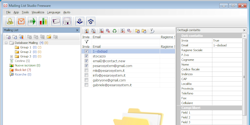
Questa guida è una piccola introduzione sulle caratteristiche generali del programma.
Gestione Account
-
Creazione Account Mittente
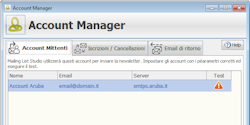
In questo video verrà mostrato come impostare un account mittente.
-
Creazione Account per Iscrizioni e cancellazioni
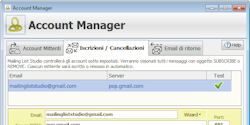
Questa guida ci aiuterà a capire tutte le funzionalità delle iscrizioni e cancellazioni.
-
Creazione Account per l'email di ritorno
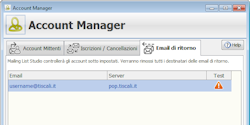
Questa guida ci aiuterà a impostare un account per il controllo delle email di ritorno.
Gestione mailing list
-
Inserimento contatti
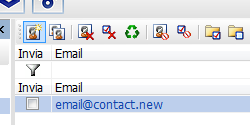
Qui impareremo come inserire nuovi contatti.
-
Gestione mailing list
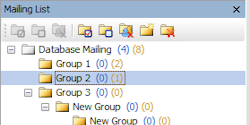
Questa è una guida generale sulla gestione della mailing list in Mailing List Studio.
-
Cestino
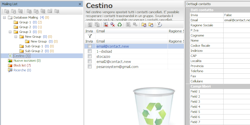
Semplice video che mostra come viene gestito il Cestino all'interno del programma.
-
Block List (utenti bloccati)
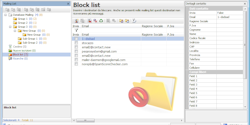
Imparerai cos'è la Block List e come gestirla.
-
Ricerca avanzata contatti
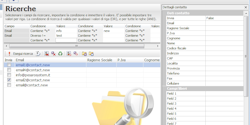
Questa guida video mostra la potenzialità della ricerca avanzata contatti in Mailing List Studio.
-
Eliminazione contatti doppi
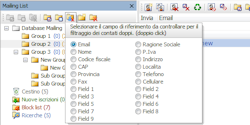
Semplice video per imparare a eliminare i destinatari doppi.
Creazione messaggi
-
Newsletter Builder
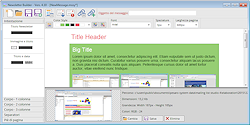
Crea messaggi strutturati senza dover necessariamente conoscere il linguaggio HTML
-
Message Editor
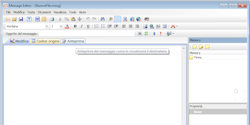
Crea messaggi utilizzando il metodo standard (stile Outlook) con il Message Editor
-
Controllo Anti SPAM
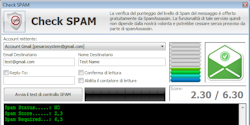
Impareremo ad eseguire il controllo Anti SPAM del nostro messaggio.
-
Messaggi personalizzati e variabili dinamiche
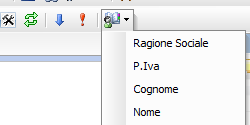
Impareremo a utilizzare le variabili dinamiche per personalizzare i messaggi.
-
Utilizzo dei templates
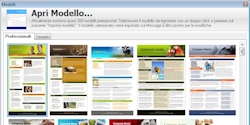
Video sull'utilizzo dei modelli preimpostati.
-
Inserimento link di REMOVE (unsubscribe) nel messaggio
Semplice guida su come inserire un link di rimozione dalla lista nei nostri messaggi.
-
Apertura file di MS Word®
Vedremo come aprire un file di MS Word®.
-
Apertura messaggi di MS Outlook®
Vedremo come aprire un messaggio creato con MS Outlook®.
-
Importare un template grafico
Vedremo come importare un'immagine e dividerla in sezioni per una maggiore compatibilità con tutti i reader,
Invio Newsletter
-
Invio newsletter pianificato e immediato
In questo video vedremo come è semplice inviare newsletter con Mailing List Studio.
-
File assistenza
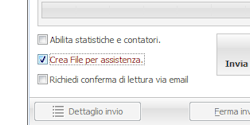
Impareremo come creare un file assistenza.
Importazione/esportazione contatti
-
Importazione contatti da MS Access
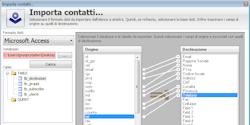
Video dimostrativo su come importare i contatti da MS Access®.
-
Importazione contatti da MS SQL Server
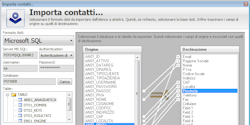
Video dimostrativo su come importare i contatti da MS SQL Server®.
-
Importazione contatti da MS Excel
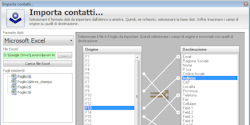
Video dimostrativo su come importare i contatti da MS Excel®.
-
Importazione contatti da file CSV
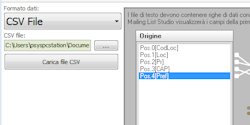
Video dimostrativo su come importare i contatti da file CSV.
-
Importazione contatti da file di testo
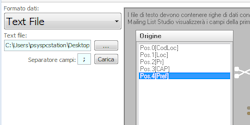
Video dimostrativo su come importare i contatti da file di testo.
-
Importazione contatti da vecchia versione
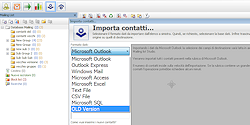
Video dimostrativo su come importare i contatti da una vecchia versione di Mailing List Studio.
-
Esportazione contatti
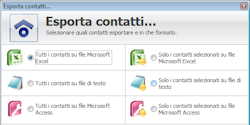
Guida chè mostrerà come esportare i contatti dal database di Mailing List Studio.
Manutenzione database
-
Backup database mailing list
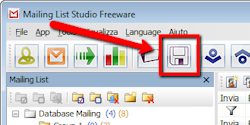
In questo video impareremo a fare un backup del database di Mailing List Studio.
-
Ripristino database mailing list
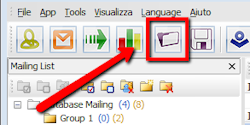
Questa guida ci mostrerà come ripristinare un database di Mailing List Studio.
-
Condivisione database
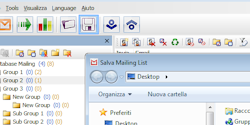
Utile guida su come condividere il database con altri computer.
Iscrizioni/Cancellazioni
-
Creazione Account per Iscrizioni e cancellazioni
Questa guida ci aiuterà a capire tutte le funzionalità delle iscrizioni e cancellazioni.
-
Inserimento link di REMOVE (unsubscribe) nel messaggio
Semplice guida su come inserire un link di rimozione dalla lista nei nostri messaggi.
-
HTML per inserire un link per iscrizioni dal sito Internet
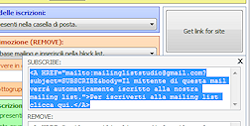
Inserire un link di iscrizione sul sito.
Email di ritorno (bounce messages)
-
Creazione Account per l'email di ritorno
Questa guida ci aiuterà a impostare un account per il controllo delle email di ritorno.
-
Gestione regole email di ritorno
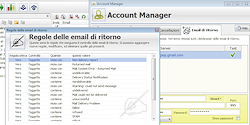
Questa guida ci aiuterà a impostare nuove regole delle email di ritorno.
Statistiche e geolocalizzazione
-
Cronologia e statistiche
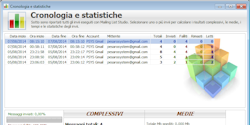
Questa è una guida video che ci mostrerà come controllare la cronologia dei nostri invi, le statistiche dei risultati, e tanto altro.
-
Geolocalizzazione dei contatti
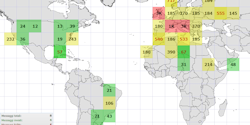
Vedremo come geolocalizzare i contatti che hanno letto le nostre newsletter e la visualizzazione in mappa dei risultati.
Servizio SMS
-
Account SMS
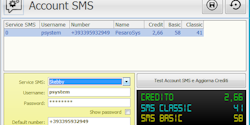
Questa guida ci aiuterà a impostare un account SMS ed eventualmente registrarsi e crearne uno totalmente nuovo.
-
Invio SMS
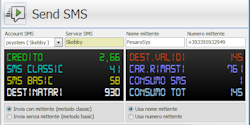
Questa guida ci spiegherà come inviare SMS con Mailing List Studio.
-
Pianificazione e Cronologia SMS
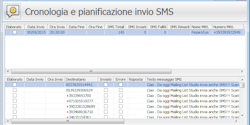
In questa guida vedremo come controllare la pianificazione e la cronologia degli invii SMS.